The day itself, planned to the minute
Your booked suppliers, the big moments and every job on one timeline, which your helpers open on the day and tick off as it happens.
Start planning your eventFree to use · No obligation · No spam
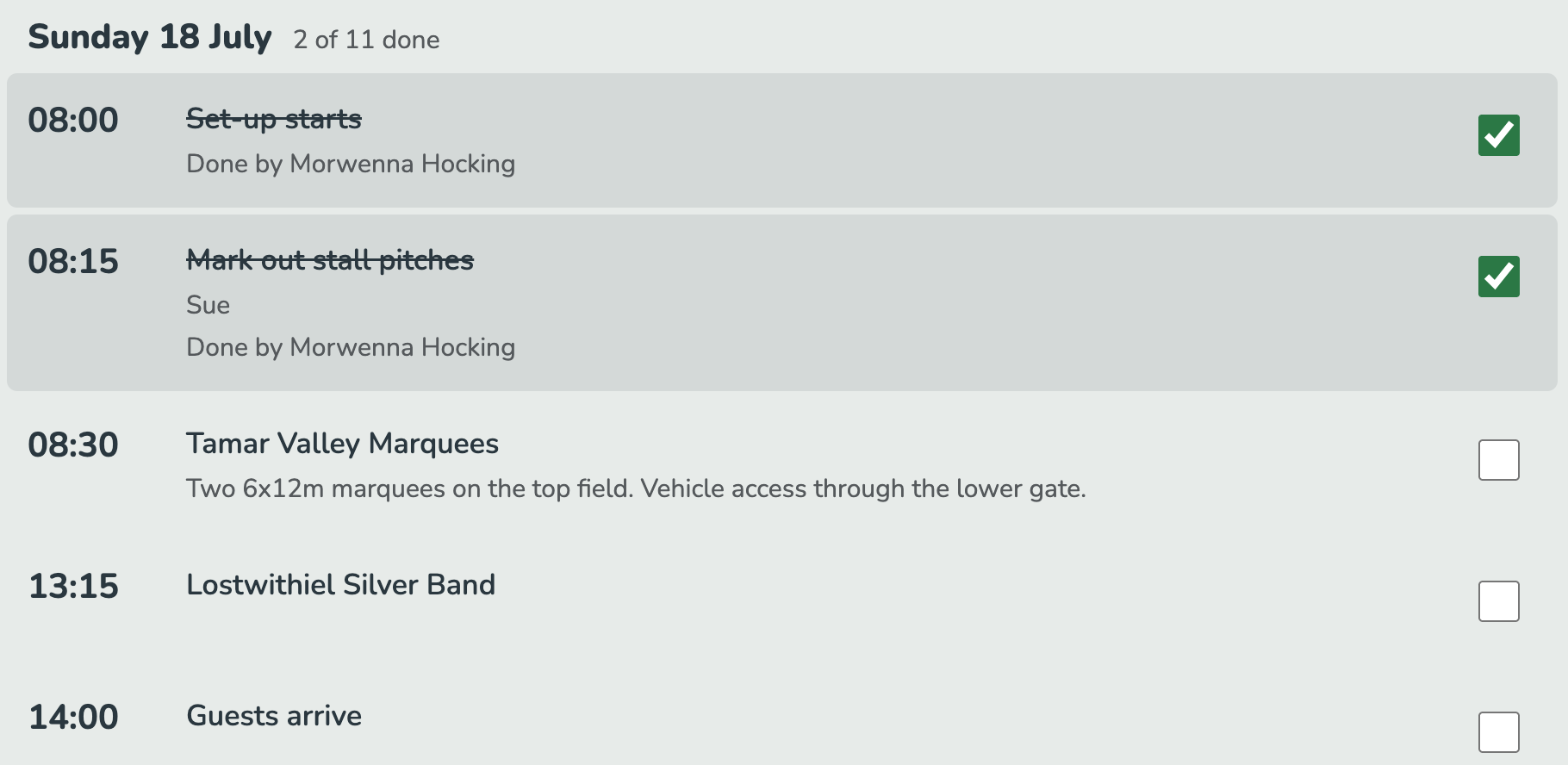
On the day, the plan usually lives in one person's head and a printout that's out of date by ten o'clock. Everyone else is ringing that person to ask where the marquee people should park.
Starts with the usual moments of the day
Open the run sheet and the usual moments of the day are already on it, along with a row for every supplier you've booked - both ready to give a time, edit or remove. For a fete's full timeline, see how to run a village fete.
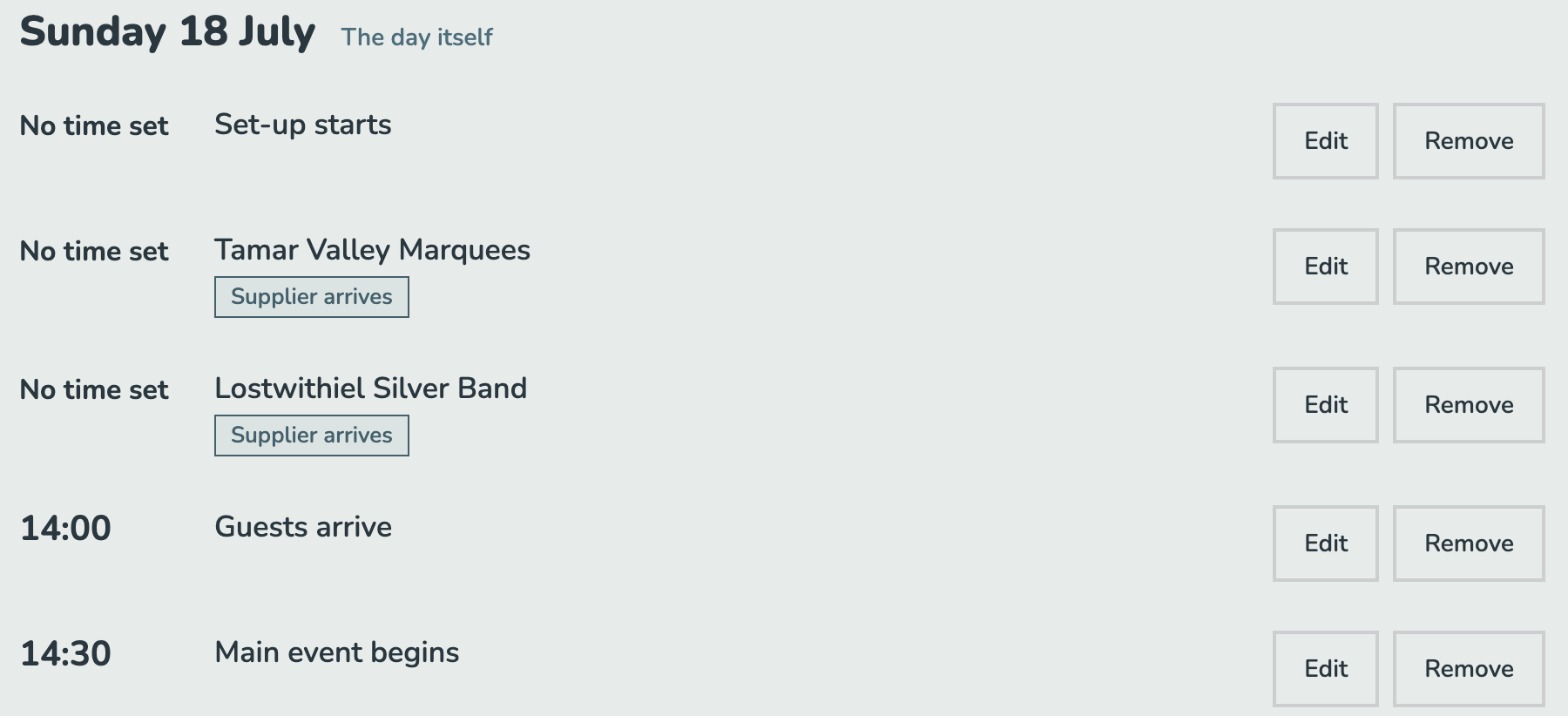
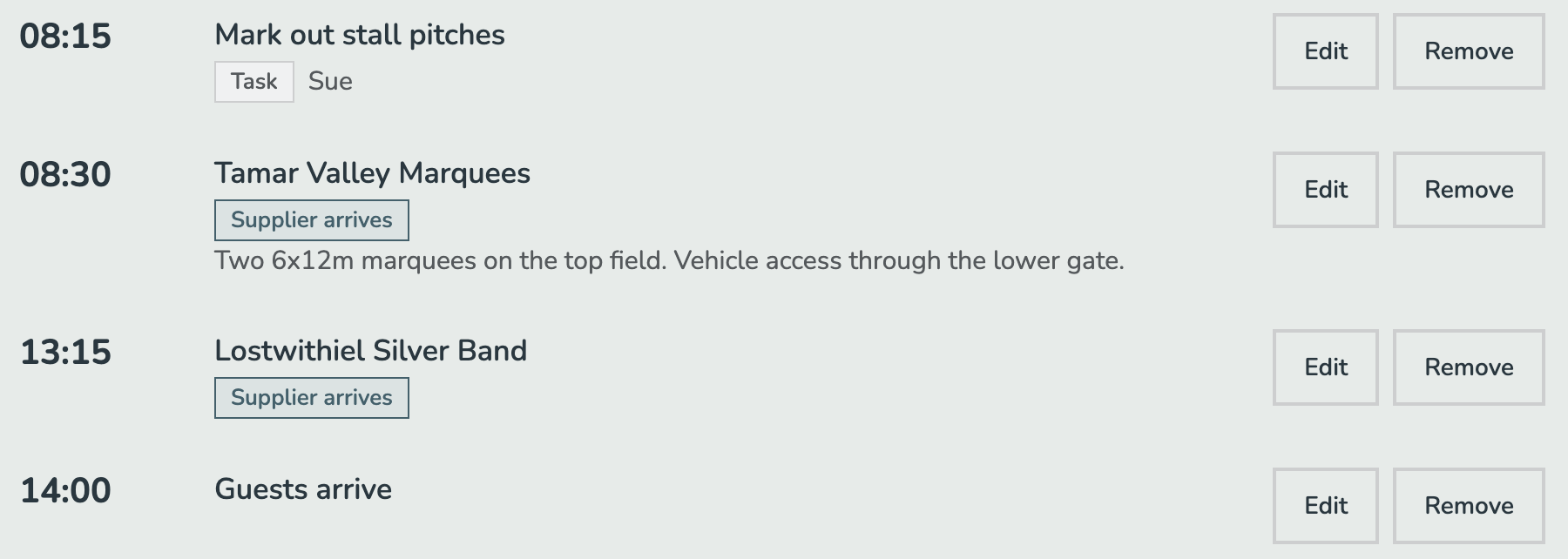
Booked suppliers become arrival times
Suppliers you've booked are already on it as arrivals, alongside the jobs and moments around it.
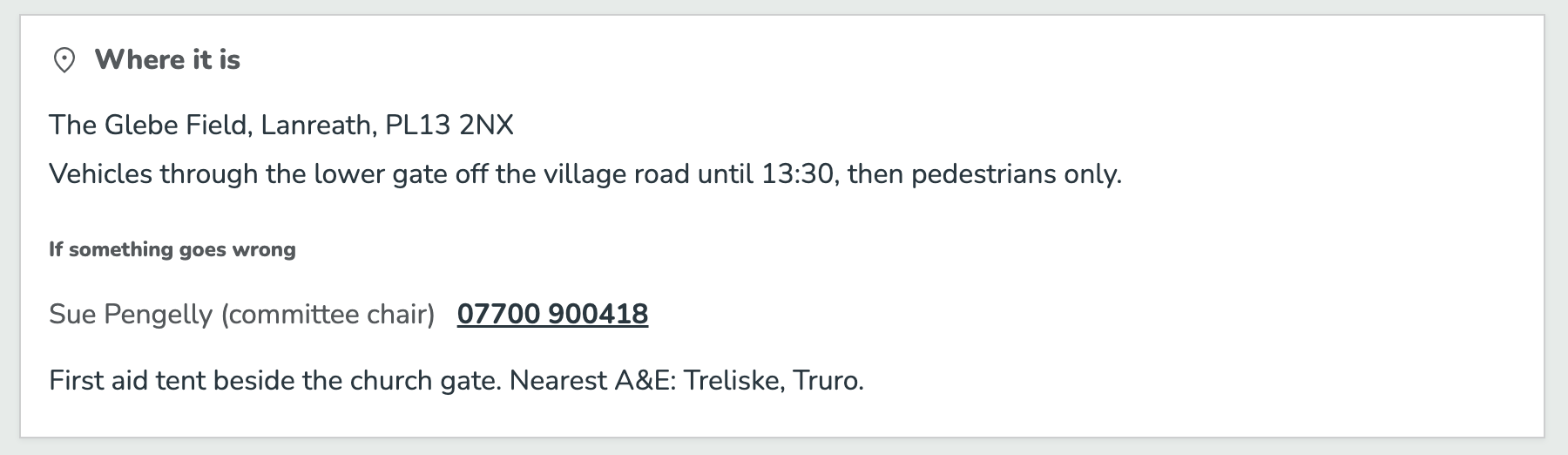
Access, parking and first aid in one place
The details everyone asks for on the day sit at the top of the sheet.
Give your helpers a link
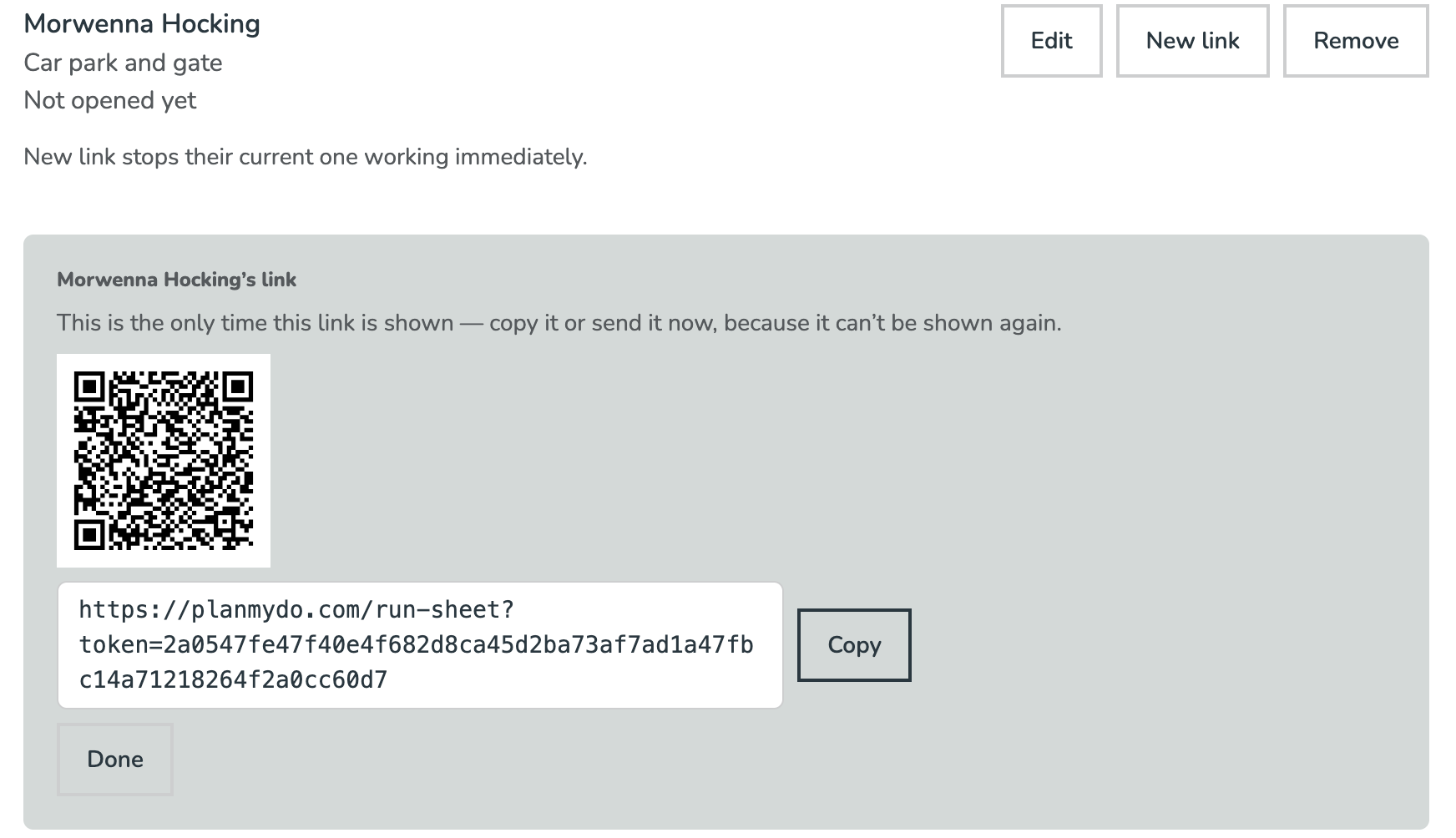
Each helper gets their own link and QR code to the live run sheet on their phone. No account, no app to install. The link is shown once, so copy or send it straight away - making a new link stops the old one working.
Where it fits
Stage 5 of 5 when you plan with Plan My Do: You run the day. See the whole journey
Also in Plan My Do
- Describe your eventWrite it the way you'd tell a friend, and the date, numbers, budget and checklist are filled in for you.
- Supplier matchingEvery job on your checklist that needs a supplier gets its own list, ranked against your date, place, guest numbers and budget, with the reasons written out.
- Enquiries & quotesSend the same enquiry to the suppliers you pick. Each one replies in its own thread, often with a written quote attached, and the one you book keeps its price and payments together.
- Guest list & RSVPYour guest list, the replies and what everyone needs to eat, kept together and kept up to date.
Related planning guides
- How to Run a Village Fete: The Committee's GuideA month-by-month plan for running a village fete in Cornwall - the permissions and insurance nobody warns you about, where the money actually comes from, how to hold a volunteer rota together, and what to do when it rains.
- Wedding Planning Timeline: 12 Months OutWhat to book and decide, month by month, from setting the date to the week of the wedding - so nothing gets left until it is too late to book.
Ready to start planning?
Tell us what you're planning and we'll take it from there.
Start planning your event